Wednesday, May 4, 2016

Nested loops : Best practices

Consider the following two examples:

Click on the image to enlarge


I have 2 questions for you now.

1) Will both the loops take the same time to execute?
2) Which is a better programming approach?

75% of the programmers would say, there will not be any changes, both the loops will execute identical. Who knows you may also think that way, I bet you are gonna change that opinion by end of this article. Or at least know why we follow something as a ‘best practice’

Let us analyze both the situations. In both cases there are 3 executable statements viz two for loops and one Print statement.

Assumption : Let us assume that every executable statement takes 1 second to execute 

Let us analyze the first situation:

Let us go line by line,


Line 1 (For i=1 to 100) : This will be executed for 100 positive conditions and 1 negative condition. Total 101 executions, there by taking 101 seconds 
Execution time for line 1 = 101 seconds

Line 2 (For j=1 to 5) : This statement will be executed for 5 positive conditions and 1 negative condition. Total 6 executions for every positive conditions of line 1, which will be 100. So making it 100x6 executions which will be 600.
Execution time for line 2 = 600

Line 3 (Print “Hello”) : For statement will be executed for every positive condition of Line 1 and Line 2. Therefore, 100x5 times it will be executed.
Execution time for line 3 = 500

Therefore the total execution time for first situation = 101 + 600 + 500 = 1201 seconds

Let us now analyse the second situation:

Let us again go line by line,


Line 1 (For j=1 to 5) : This will be executed for 5 positive conditions and 1 negative condition. Total 6 executions, there by taking 6 seconds 
Execution time for line 1 = 6 seconds

Line 2 (For i=1 to 100) : This statement will be executed for 100 positive conditions and 1 negative condition. Total 101 executions for every positive conditions of line 1, which will be 5. So making it 5x101 executions which will be 505.
Execution time for line 2 = 505

Line 3 (Print “Hello”) : For statement will be executed for every positive condition of Line 1 and Line 2. Therefore, 5x100 times it will be executed.
Execution time for line 3 = 500

Here the total execution time for 2nd situation = 6 + 505 + 500 = 1011 seconds.

Did you ever realize this??? Yes, Always remember...
We should have the lesser iteration loop in the outer and more iterations loop inner.


Monday, April 11, 2016

Business Process Testing (BPT) Framework in QTP

Business Process Testing (BPT) Framework is the framework where you can divide the test cases into multiple flows and each of these flows is scripted by using a Business Process Component. When all the components for a particular test case are ready, you can link the components one after the other as per the test case flow and execute the BPT test case from QC.

To know more about BPT Framework please refer this link

Components in BPT Framework


  • Application Area: Application Area acts as a container or a place holder that stores the Business Process Components and other related items such as function libraries, object repositories etc.
  • Business Process Component: Just like functions or actions that can be used to store re-usable code, BPT framework has Business Process Components in which you write the scripts for an action.
  • Above mentioned are the two components that are available specifically in BPT Framework. Other than these, you will have the standard components like function libraries, object repositories, data sheets etc as part of your BPT Framework.
Workflow in BPT Framework


Advantages of BPT Framework
  • BPT Framework allows non-technical subject matter experts to quickly create test cases using the business process components.
  • A lot of features such as component linking & data parameterization come built in with the BPT Framework. Because of this you do not need to spend extra effort to write code for these functionalities.

Disadvantages of BPT Framework
  • BPT Framework can be used only if you have QC access.
  • You would need to purchase additional license for BPT Framework if you want to use this for your test scripts.

Hybrid Framework in QTP

Hybrid Framework is a framework that is created by combining different features of any of the frameworks mentioned above. Based upon your requirements, you can combine the features of any of the above frameworks to come up with your own version of Hybrid Framework.
There are many different ways to create a Hybrid Framework. Let’s see the structure and workflow for one of these types of Hybrid Framework.

Components in Keyword Driven Framework


  • Driver Script: It is a VBScript file that acts as the starting point for running your test scripts.
  • Batch Sheet: Batch Sheet contains the list of all the test cases that you have automated. It also contains a column named “Execute” which contains values ‘Yes’ and ‘No’. The Driver Script
    reads this sheet and executes those test cases that are marked as ‘Yes’.
  • Test Case Flow Sheet: Each test case is divided into different business flows. So a test case will be completely executed only when all its flows have been executed.

  • These are the main components that constitute a Hybrid Framework. Other common components like Function Libraries, Data Sheets, Object Repositories, Configuration files etc are also a part of Hybrid Framework.
Workflow in Hybrid Framework


Advantages of Hybrid Framework

The main advantage of this approach is that you can use the best features from all the types of frameworks to create your own.

Disadvantages of Hybrid Framework

The framework is highly complex and needs very good programming expertise and experience to build a Hybrid Framework from scratch.


Keyword Driven Framework in QTP

In Keyword Driven framework, you can create various keywords and associate a different action or function with each of these keywords. Then you create a Function Library that contains the logic to read the keywords and call the associated action.
Keyword driven frameworks come in many different flavors. One of them is explained below.

Components in Keyword Driven Framework


  • Data Table or Excel Sheets which contains the keywords and the steps needed to execute a particular flow or action.

  • A Function Library which contains various functions that read each line from the excel sheet, convert it into “QTP readable” format and finally execute it. For example, the function library would read the first line from the excel and convert it as –
           Browser(“Title”).Page(“Title”).WebEdit(“UserName”).Set “user1”
  • Object Repository may or may not be used in this framework. You can use descriptive programming approach if you want to avoid using the object repository.
Workflow in Keyword Driven Framework


Advantages of Keyword Driven Framework
  • The keyword and function libraries are completely generic and thus can be reused easily for different applications.
  • All the complexity is added in the function libraries. Once the libraries are ready, it becomes very easy to write the actual test script steps in excel sheets.
Disadvantages of Keyword Driven Framework
  • Lot of time and effort needs to be spent initially to create the function libraries. The benefits of the keyword driven framework are realized only after it has been used for longer periods of time.
  • Very high programming skills are needed to create the complex keyword library functions.
  • It’s not easy for new people to understand the framework quickly.

Data Driven Framework in QTP

In Data Driven Framework, the data is NOT hard-coded in the test scripts. Instead, it is stored in some external files. The test script first connects to the external data source and then extracts the data from that source. Most of the times, excel sheets are used to store the data. Other external data sources that are frequently used are –

  • Text files.
  • XML files.
  • Databases.
  • Combination of more than one external file.

Components and Workflow of Data Driven Framework


Advantages of Data Driven Framework
  • Since the data is kept separate from the test script, the same script can be run multiple times for different sets of data (which can be kept in multiple rows in the data sheet).
  • Changes made in the test data don’t affect the test scripts in any way and vice versa.

Disadvantages of Data Driven Framework
  • Additional effort and good technical expertise is required to create functions that connect to the external data sources to retrieve the data.
  • Additional amount of time is required in identifying which external data source to use and deciding how the data should be stored or grouped in that external data source.

Modular Framework in QTP

Modular Framework is the approach where all the test cases are first analyzed to find out the reusable flows. Then while scripting, all these reusable flows are created as functions and stored in external files and called in the test scripts wherever required. Consider the following 2 test cases.

a) Login > Create Order > Logout.
b) Login > Search Order > Logout.

Here Login and Logout are the reusable flows. Functions would be created for each of these flows which will be saved in an external function library. The test scripts would look something like this.


Components and Workflow of Modular Framework


In order to use the functions from the external library file, the library file must be first associated to the test cases. Once this is done, the test case can call all the functions present in the library file.

Advantages of Modular Framework
  • Test Scripts can be created in relatively less time as the reusable functions need to be created only once.
  • Effort required to create test cases is also lesser due to code reuse.
  • If there are any changes in the reusable functions, the changes need to be done in only a single place. Hence script maintenance is easier.
Disadvantages of Modular Framework
  • Since data is still hard coded in the script, the same test case cannot be run for multiple data values without changing data after each run.
  • Additional time is spent in analyzing the test cases to identify with reusable flows.
  • Good programming knowledge is required to create and maintain function libraries.

Linear Framework in QTP

Linear Framework is the framework where you write the scripts in a step by step manner as depicted in the test case flow. In this type of framework, you don’t create any functions and all the steps are written one after the other in a linear fashion. Suppose you have a test case with the following flow -> Login > Create Order -> Logout, the test script for this will be written as –


Components and Workflow in Linear Framework
Following diagram illustrates the components and the typical workflow of the Linear Framework in QTP.


Here each test case has its own local object repository and the data is hard-coded in the script.

Advantages of Linear Framework

  • Automation expertise not required as record and playback method can be used to create scripts.
  • Fastest and easiest way to create test scripts.
  • Understanding the framework flow is very easy as the scripts are written in a linear manner.
Disadvantages of Linear Framework


  • The only way to reuse the code will be to copy paste it in different test cases which leads to code duplication.
  • Since data is hard coded in the script, the same test case cannot be run for multiple data values without changing data after each run.
  • In case of any changes lot of rework would be required as the reusable code is duplicated at a lot of places.

What is Test Automation Framework?

Suppose you are given a task where you have to automate some test cases for an application. When you are finished automating the application, what would be your expectations from the scripts you have created? Wouldn’t you want that –

  • the scripts should run as intended without any issues.
  • the code and the flows should be easy to understand.
  • the scripts should be easy to maintain in case of any changes.

All the above points can be achieved by using a proper Automation Framework.
An Automation Framework is a set of guidelines that you can follow during test case scripting to achieve the above mentioned results. This set of guidelines can be anything such as –

  • Specifying the folder structure that will be used for storing test cases, function libraries, object repositories and data sheets.
  • Deciding the format of the data sheets i.e., how the data sheets would be grouped and how the scripts will access these data sheets.
  • Following proper coding standards and using comments so that the code can be understood easily by anyone.
  • Using reusable functions wherever possible so that lesser amount of rework is needed in case of any changes

NOTE: These are just a set of guidelines and not some rules that should compulsorily be followed. Even if you don’t follow any of these guidelines, you would be able to come up with test scripts that would run perfectly fine. But you might not have the additional advantages like readability of code, ease of maintenance etc.

Thursday, November 27, 2014

Synchronization Points

When AUT takes some time to respond to an action, QTP might execute the next steps for which the application is not yet ready. In this situation QTP might throw an error. Normally we see "Object is disabled" message.

In this case, synchronization points are used to pause the script to execute certain steps in the test.

There are 4 different types of Synchronization points...

First : 

Browser("....").Page("...").WebList("List").Select "Something"

'Wait for page to load
Browser("...").Sync

'Perform next actions in the scripts
Browser("...").Page("...").WebButton("ButtonName").Click

Second:

Browser("....").Page("...").WebList("List").Select "Something"

'Wait for page to load
Wait 2 ' Waits for 2 Seconds

'Perform next actions in the scripts
Browser("...").Page("...").WebButton("ButtonName").Click

Third:

Browser("....").Page("...").WebList("List").Select "Something"

'Wait for max 5 seconds or until the button gets enabled, whichever is lesser
Browser("...").Page("...").WebButton("ButtonName").WaitProperty("Enabled",True,5000)
Browser("...").Page("...").WebButton("ButtonName").Click

Four:

Browser("....").Page("...").WebList("List").Select "Something"

'Wait for max 5 seconds for button to appear/enable
bAppear = Browser("...").Page("...").WebButton("ButtonName").Exist(5)

'Verify the button exist 
If bAppear Then
Browser("...").Page("...").WebButton("ButtonName").Click
Else
'Report the message to QTP Results
End if


Thursday, August 18, 2011

Closes all instatnces of open IE browsers

Function Close_All_Browsers()

strComputer = "."
Set objWMIService = GetObject("winmgmts:" _
& "{impersonationLevel=impersonate}!\\" & strComputer & "\root\cimv2")

Set colIEProcessList = objWMIService.ExecQuery _
("SELECT * FROM Win32_Process WHERE Name = 'iexplore.exe'")

For Each objProcess in colIEProcessList
objProcess.Terminate()
Next
End Function

This function populates web edit objects with class = dojoComboBox


Function populateDojo (object, sParameter)
   Dim WshShell, sNewParameter

sNewParameter = mid(sParameter,1,len(sParameter)-1)
Set WshShell = CreateObject("WScript.Shell")
wait(2)
object.Click
    WshShell.SendKeys sNewParameter
Wait (3)'Give time for AJAX call to return
WshShell.SendKeys "{DOWN}"
Wait (1)
WshShell.SendKeys "{TAB}"
Wait (3)'Give time for AJAX call to return
Set WshShell = nothing
End Function

Function to "type" into web edits rather than using .set

Function objectType(objObject, parameter)
   On Error Resume Next
   objObject.Click
   Set oShell = CreateObject("WScript.Shell")
   oShell.SendKeys parameter
   oShell.SendKeys("{TAB}")
   Set oShell = Nothing
   If Err.Number = 0 Then
      objectType = True
   Else
      Reporter.ReportEvent micFail, "objectType", "Error # " & CStr(Err.Number) & "Error Detail: " & Err.Description & "Error source: " & Err.Source
      Err.Clear
      objectType = False
   End If
   On Error GoTo 0
End Function

You can call this function as
objectType(UserName, Arun)

Sunday, November 22, 2009

Is VB Script Supports OOPS Concept . . .

My answer for this is No but Yes.
To supports the OOPs concept, the script needs to be satisfy the OOPs principles.

OOPS Principles -
1.Encapsulation
2.Inheritance
3.Polymorphism

Lets write a script to satisfy each principle -

Encapsulation - The wrapping of data and function into a single unit (Called class) is known as Encapsulation.

Example -

Class Maths

Function add(a,b)
MsgBox "Sum = "&a+b
End Function
End Class

Set Mat=New Maths
res=Mat.add (2,3)

'************************************************************************************

Inheritance - It is the process by which object of one class acquire the properties of object of another class.

'Example -

Class Outer
Function test()
Set inn= New Inner
inn.display
End Function

End Class

Class Inner
Function display()
MsgBox "This is inner class"
End Function
End Class

Set out=New Outer
out.test()

'************************************************************************************

'Polymorphism - Polymorphism means the ability to take more than one form/methods

Example -

Dim idno, name, marks
Class Student

Function SetData()
idno="10"
name="arun"
marks="300"
End Function

Function getData()
MsgBox "Idno "&idno
MsgBox "Name "&name
MsgBox "Marks "&marks
End Function

End Class

Class Student2

Function SetData(a,s,m)
idno=a
name=s
marks=m
End Function

End Class

Set Std1=New Student
std1.SetData()
std1.getData()
Set std2=New Student2
std2.SetData "12","Singh","400"
std1.getData()


I am trying to say Yes, it supports OOPS concept. But if any body is having any questions or my assumption is wrong then please post here as a comments.

*************************************************************************************

Sunday, July 5, 2009

QTP Vedio for Normal Recording

How to Click on Dinamic Links

Here is the script to click on the dynamic Links in table. Even though if any link are dynamic we can get control on the links by using index.

'*******************************************************************
Set TblObj=Browser( BrowserProp) .Page(PageProp) .WebTable( TableProp)

r_Count=TblObj. RowCount

For r=1 to r_Count
c_Count=TblObj. ColumnCount( r)

For c=1 to c_Count

chItems_Count= TblObj.ChildItem Count(r,c, "Link")

For ItemIndex=0 to chItems_Count- 1

Set ch_Item=TblObj. ChildItem( r,c,"Link" ,ItemIndex)
Print ch_Item.object. title
ch_Item.click
' Specify the required operations after clicking on link
' Make sure that again you should navigate to the same page to get other links tooltip
'Or to click on other Links
Next

Next
Next
'**********************************************************************

Monday, May 18, 2009

How To Run QTP Scripts at Scheduled Time?

I have gathered this information from learnqtp.com by Ankur.

There can be situations when you need to schedule your QTP scripts so that they can run when you are not present in front of you PC. I will show you a demo below -

1) Create a .vbs fild to launch QTP with requiresd settings, add-ins etc.\\
Here is a sample vbs code

Set App = CreateObject("QuickTest.Application")

App.Launch

App.Visible = True

App.WindowState = "Maximized"

App.ActivateView "ExpertView"

App.open "C:\Program Files\Mercury Interactive

\QuickTest Professional\Tests\Test1", False

'Opens the test in editable mode

2) OK, for the first timers. Create a sample QTP test and save it as Test1 at the location above. Copy the code into notepad and name the file as testing.vbs

3) Now we will automate the opening of vbs file through windows scheduyler. Go to Start > Control Panel > Schedule Tasks > Click Add Schedule Tasks Click Next on the Screen

4) Click Browse and select the .vbs file you just created. You will ge this screen.

image

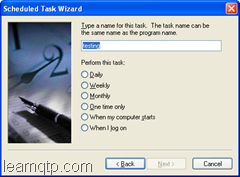
5) Give a name to the task and select the frequence for performing the
given tasks. For this demo we will select "One time only"

image

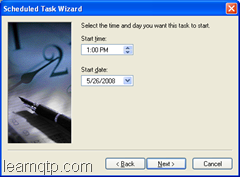
6) Select Start Time and Start Date. For this demo, select Start Time as current time+5 mins and Start date as today date.
7) Next Screen Enter "UserNAme", "Password" and "Confirm Password"
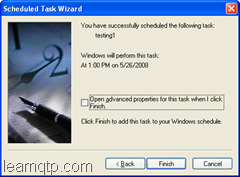
Click Next and you should get this screen.

image


8) Click on Finish, you're done.


Environment Variables

Environment variables in QTP are like global variables in other programming languages which can be accessed through any part of the script. The values of these variables remains same irrespective of the number of iterations (unless you change them through scripting). These variables can prove to be very useful when you want a variable to be shared across various reusable actions.

There are two types of environment variables:

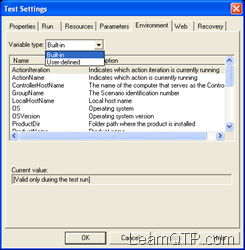
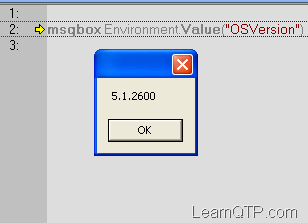
  1. Built-In: These are the internal variables that are provided by QTP. Among others they can provide you valuable information like the path of the folder where test is located, the path of the results folder, the name of the action iteration or the OS version. So, how can we access the built in environment variable? It’s simple, just have a look at screenshot. QTP Built in Environment Variables So if you want to know the OSVersion of the operating system where your test is running. You can simply type in Environment.Value(“OSVersion”) QTP OSVersion
  2. User-Defined: These can be further defined into two types.
    • User defined Internal
      • These are the variables that we define within the test.
      • These variables are saved with the test and are accessible only within the test in which they were defined.
      • So how can we define and use them?
        To define them: Environment.Value(”name”)= “Rajaputra”
        To call them: msgbox Environment.Value(”name”)
    • User defined External
      • These are the variables that we predefine in the active external environment variables file.
      • These can be created using a list of variable-value pairs in an external file in .xml format. This is a topic of a separate post that we will discuss later.

    We can use environment variables in a number of ways:

    1) When you want a global variable that is needed throughout the test run (across all your reusable actions).

    2) When you see that one reusable action in a script is dependent on the others. You might want to use them

    3) When you need to reference the current “test directory” irrespective of the location where it is stored.

Environment Variables

I have gathered this information from learnqtp.com by Ankur.

Environment variables in QTP are like global variables in other programming languages which can be accessed through any part of the script. The values of these variables remains same irrespective of the number of iterations (unless you change them through scripting). These variables can prove to be very useful when you want a variable to be shared across various reusable actions.
There are two types of environment variables:
  1. Built-In: These are the internal variables that are provided by QTP. Among others they can provide you valuable information like the path of the folder where test is located, the path of the results folder, the name of the action iteration or the OS version. So, how can we access the built in environment variable? It’s simple, just have a look at screenshot. QTP Built in Environment Variables So if you want to know the OSVersion of the operating system where your test is running. You can simply type in Environment.Value(“OSVersion”) QTP OSVersion
  2. User-Defined: These can be further defined into two types.
    • User defined Internal
      • These are the variables that we define within the test.
      • These variables are saved with the test and are accessible only within the test in which they were defined.
      • So how can we define and use them?
        To define them: Environment.Value(”name”)= “Rajaputra”
        To call them: msgbox Environment.Value(”name”)

    • User defined External
      • These are the variables that we predefine in the active external environment variables file.
      • These can be created using a list of variable-value pairs in an external file in .xml format. This is a topic of a separate post that we will discuss later.


    We can use environment variables in a number of ways:
    1) When you want a global variable that is needed throughout the test run (across all your reusable actions).
    2) When you see that one reusable action in a script is dependent on the others. You might want to use them
    3) When you need to reference the current “test directory” irrespective of the location where it is stored.

Excel Automation

Here is the few functions to automate the excel application.

'To Open a Microsoft Excel application with default new work book

Function CreateExcel()
Dim excelSheet
Set ExcelApp = CreateObject("Excel.Application") 'Create a new Microsoft Excel object
ExcelApp.Workbooks.Add
ExcelApp.Visible = True
Set CreateExcel = ExcelApp
End Function


'To Close the given Microsoft Excel document

Sub CloseExcel(ExcelApp)
Set excelSheet = ExcelApp.ActiveSheet
Set excelBook = ExcelApp.ActiveWorkbook
Set fso = CreateObject("Scripting.FileSystemObject")
On Error Resume Next
fso.CreateFolder "C:\Temp"
fso.DeleteFile "C:\Temp\ExcelExamples.xls"
excelBook.SaveAs "C:\Temp\ExcelExamples.xls"
ExcelApp.Quit
Set ExcelApp = Nothing
Set fso = Nothing
Err = 0
On Error GoTo 0
End Sub


'The SaveWorkbook method saves a workbook according to the workbook identifier.
'The method overwrites the previously saved file in the given path.
'excelApp - a reference to the Microsoft Excel application
'workbookIdentifier - The name or number of the requested workbook
'path - The location to which the workbook should be saved
'Returns "OK" on success and "Bad Workbook Identifier" on failure


Function SaveWorkbook(ExcelApp, workbookIdentifier, path) 'As String
Dim workbook 'As Excel.workbook
On Error Resume Next
Set workbook = ExcelApp.Workbooks(workbookIdentifier)
On Error GoTo 0
If Not workbook Is Nothing Then
Set fso = CreateObject("Scripting.FileSystemObject")
'If the path has no file extension then add the 'xls' extension
If InStr(path, ".") = 0 Then
path = path & ".xls"
End If
On Error Resume Next
fso.DeleteFile path
Set fso = Nothing
Err = 0
On Error GoTo 0
workbook.SaveAs path
SaveWorkbook = "OK"
Else
SaveWorkbook = "Bad Workbook Identifier"
End If
End Function


'The SetCellValue method sets the given 'value' in the cell which is identified by
'its row, column, and parent Microsoft Excel sheet
'excelSheet - The Microsoft Excel sheet that is the parent of the requested cell
'row - the cell's row in the excelSheet
'column - the cell's column in the excelSheet
'value - the value to be set in the cell


Sub SetCellValue(excelSheet, row, column, value)
On Error Resume Next
excelSheet.Cells(row, column) = value
On Error GoTo 0
End Sub


'The GetCellValue returns the cell's value according to its row, column, and sheet
'excelSheet - The Microsoft Excel sheet in which the cell exists
'row - The cell's row
'column - The cell's column
'return 0 if the cell cannot be found


Function GetCellValue(excelSheet, row, column)
value = 0
Err = 0
On Error Resume Next
tempValue = excelSheet.Cells(row, column)
If Err = 0 Then
value = tempValue
Err = 0
End If
On Error GoTo 0
GetCellValue = value
End Function


'The GetSheet method returns a Microsoft Excel sheet according to the sheet Identifier
'ExcelApp - The Microsoft Excel application which is the parent of the requested sheet
'sheetIdentifier - The name or the number of the requested Microsofr Excel sheet
'return Nothing on failure


Function GetSheet(ExcelApp, sheetIdentifier) 'As Excel.worksheet
On Error Resume Next
Set GetSheet = ExcelApp.Worksheets.Item(sheetIdentifier)
On Error GoTo 0
End Function


'The InsertNewWorksheet method inserts a new worksheet into the active workbook or
'the workbook identified by the workbookIdentifier. The new worksheet will get a default
'name if the sheetName parameter is empty, otherwise the sheet has the sheetName
'as its name.
'Return - The new sheet as an object
'ExcelApp - The Microsoft Excel application object into which the new worksheet should be added
'workbookIdentifier - An optional identifier of the worksheet into which the new worksheet should be added
'sheetName - The optional name of the new worksheet.


Function InsertNewWorksheet(ExcelApp, workbookIdentifier, sheetName) 'As Excel.worksheet
Dim workbook 'As Excel.workbook
Dim worksheet 'As Excel.worksheet
'If the workbookIdentifier is empty, work on the active workbook
If workbookIdentifier = "" Then
Set workbook = ExcelApp.ActiveWorkbook
Else
On Error Resume Next
Err = 0
Set workbook = ExcelApp.Workbooks(workbookIdentifier)
If Err <> 0 Then
Set InsertNewWorksheet = Nothing
Err = 0
Exit Function
End If
On Error GoTo 0
End If
sheetCount = workbook.Sheets.Count
workbook.Sheets.Add , sheetCount
Set worksheet = workbook.Sheets(sheetCount + 1)
'If the sheetName is not empty, set the new sheet's name to sheetName
If sheetName <> "" Then
worksheet.Name = sheetName
End If
Set InsertNewWorksheet = worksheet
End Function


'The RenameWorksheet method renames a worksheet'
'ExcelApp - The Microsoft Excel application that is the worksheet's parent
'workbookIdentifier - The worksheet's parent workbook identifier
'worksheetIdentifier - The worksheet's identifier
'sheetName - The new name for the worksheet


Function RenameWorksheet(ExcelApp, workbookIdentifier, worksheetIdentifier, sheetName) 'As String
Dim workbook 'As Excel.workbook
Dim worksheet 'As Excel.worksheet
On Error Resume Next
Err = 0
Set workbook = ExcelApp.Workbooks(workbookIdentifier)
If Err <> 0 Then
RenameWorksheet = "Bad Workbook Identifier"
Err = 0
Exit Function
End If
Set worksheet = workbook.Sheets(worksheetIdentifier)
If Err <> 0 Then
RenameWorksheet = "Bad Worksheet Identifier"
Err = 0
Exit Function
End If
worksheet.Name = sheetName
RenameWorksheet = "OK"
End Function


'The RemoveWorksheet method removes a worksheet from a workbook
'ExcelApp - The Microsoft Excel application that is the worksheet's parent
'workbookIdentifier - The worksheet's parent workbook identifier
'worksheetIdentifier - The worksheet's identifier


Function RemoveWorksheet(ExcelApp, workbookIdentifier, worksheetIdentifier) 'As String
Dim workbook 'As Excel.workbook
Dim worksheet 'As Excel.worksheet
On Error Resume Next
Err = 0
Set workbook = ExcelApp.Workbooks(workbookIdentifier)
If Err <> 0 Then
RemoveWorksheet = "Bad Workbook Identifier"
Exit Function
End If
Set worksheet = workbook.Sheets(worksheetIdentifier)
If Err <> 0 Then
RemoveWorksheet = "Bad Worksheet Identifier"
Exit Function
End If
worksheet.Delete
RemoveWorksheet = "OK"
End Function


'The CreateNewWorkbook method creates a new workbook in the Microsoft Excel application
'ExcelApp - The Microsoft Excel application to which an new Microsoft Excel workbook will be added


Function CreateNewWorkbook(ExcelApp)
Set NewWorkbook = ExcelApp.Workbooks.Add()
Set CreateNewWorkbook = NewWorkbook
End Function


'The OpenWorkbook method opens a previously saved Microsoft Excel workbook and adds it to the Application
'excelApp - The Microsoft Excel application to which the workbook will be added.
'path - The path of the workbook that will be opened
'Returns Nothing on failure


Function OpenWorkbook(ExcelApp, path)
On Error Resume Next
Set NewWorkbook = ExcelApp.Workbooks.Open(path)
Set OpenWorkbook = NewWorkbook
On Error GoTo 0
End Function


'The ActivateWorkbook method sets one of the workbooks in the application as the active workbook
'ExcelApp - The workbook's parent Microsft Excel application
'workbookIdentifier - The name or the number of the workbook


Sub ActivateWorkbook(ExcelApp, workbookIdentifier)
On Error Resume Next
ExcelApp.Workbooks(workbookIdentifier).Activate
On Error GoTo 0
End Sub


'The CloseWorkbook method closes an open workbook
'ExcelApp - The parent Microsoft Excel application of the workbook
'workbookIdentifier - The name or the number of the workbook


Sub CloseWorkbook(ExcelApp, workbookIdentifier)
On Error Resume Next
ExcelApp.Workbooks(workbookIdentifier).Close
On Error GoTo 0
End Sub


'The CompareSheets method compares two sheets.
'If there is a difference between the two sheets then the value in the second sheet
'will be changed to red and contain the string:
'Compare conflict - Value was 'Value2', Expected value is 'value2'"
'sheet1, sheet2 - The Microsoft Excel sheets to be compared
'startColumn - The column to start comparing in the two sheets
'numberOfColumns - The number of columns to be compared
'startRow - The row to start comparing in the two sheets
'numberOfRows - The number of rows to be compared


Function CompareSheets(sheet1, sheet2, startColumn, numberOfColumns, startRow, numberOfRows, trimed) 'As Boolean
Dim returnVal 'As Boolean
returnVal = True
'If one of the sheets does not exist, do not continue the process
If sheet1 Is Nothing Or sheet2 Is Nothing Then
CompareSheets = False
Exit Function
End If
'Loop through the table and fill values into the two worksheets
For r = startRow to (startRow + (numberOfRows - 1))
For c = startColumn to (startColumn + (numberOfColumns - 1))
Value1 = sheet1.Cells(r, c)
Value2 = sheet2.Cells(r, c)
'If 'trimed' equals True then user wants to ignore blank spaces
If trimed Then
Value1 = Trim(Value1)
Value2 = Trim(Value2)
End If
'if the values of a cell are not equal in the two worksheets
'create an indicator that the values are not equal and set the return value
'to False
If Value1 <> Value2 Then
Dim cell 'As Excel.Range
sheet2.Cells(r, c) = "Compare conflict - Value was '" & Value2 & "', Expected value is '" & Value1 & "'."
Set cell = sheet2.Cells(r, c)
cell.Font.Color = vbRed
returnVal = False
End If
Next
Next
CompareSheets = returnVal
End Function


'***********************************************
'Main Script which calls all above the functions.

Dim ExcellApp 'As Excel.Application
Dim excelSheet1 'As Excel.worksheet
Dim excelSheet2 'As Excel.worksheet
Set ExcelApp = CreateExcel()

'Create a workbook with two worksheets
ret = RenameWorksheet(ExcelApp, "Book1", "Sheet1", "Example1 Sheet Name")
ret = RenameWorksheet(ExcelApp, "Book1", "Sheet2", "Example2 Sheet Name")

'Save as the workbook under a different name
ret = SaveWorkbook(ExcelApp, "Book1", "E:\Example1.xls")
'Fill the worksheets
Set excelSheet1 = GetSheet(ExcelApp, "Example1 Sheet Name")
Set excelSheet2 = GetSheet(ExcelApp, "Example2 Sheet Name")
For column = 1 to 10
For row = 1 to 10
SetCellValue excelSheet1, row, column, row + column
SetCellValue excelSheet2, row, column, row + column
Next
Next

'Compare the two worksheets
ret = CompareSheets(excelSheet1, excelSheet2, 1, 10, 1, 10, False)
If ret Then
MsgBox "The two worksheets are identical"
End If

'Change the values in one sheet
SetCellValue excelSheet1, 1, 1, "Yellow"
SetCellValue excelSheet2, 2, 2, "Hello"

'Compare the worksheets again
ret = CompareSheets(excelSheet1, excelSheet2, 1, 10, 1, 10, True)
If Not ret Then
MsgBox "The two worksheets are not identical"
End If

'Save the workbook by index identifier
SaveWorkbook ExcelApp, 1, ""
'Close the Microsoft Excel application
CloseExcel ExcelApp

Monday, February 2, 2009

How to add two dollar amounts

'''''' To add the $ amounts''''''''''''''''

amount1 = inputbox("Enter the first dollar amount")
''''''Enter the amount with $ symbol Ex - $ 2000

amount2 = inputbox("Enter the second dollar amount")
'''''Enter the amount with $ symbol Ex - $ 3000

lnt1=len (amount1)
'To get the length of the dollar amount
lnt2=len(amount2)
' To get the length of the dollar amount

aamount1 = Right(amount1,lnt1-1)
'''''' To remove the dollar symbol and get the actual amount

aamount2= Right(amount2,lnt2 - 1)
''''''To remove the dollar symbol and get the actual amount

msgbox Cint(aamount1)+Cint(aamount2)

About Me

My photo
Hi all,I am Arun Singh Rajaputra. I am working as a Project Lead in a reputed organization in Hyderabad, AP, India. I have little bit knowledge on Quick Test Professional and like to share my knowledge to all through this blog.

Subscribe to get updates on this blog

Enter your email address:

NOTE

Some of the posts posted in this blog are collected and most of them have been prepared by me. If any one have objections regarding any copied posts. Please mail me so that I can take a necessary action on that post.